
To exert full control over the layout, look, & feel of every element of the Elevent plug-in, you can create your own CSS overrides file in your own child theme. This is the recommended method so neither theme updates nor Elevent plug-in updates overwrite any customizations you make.
What is a Child Theme?
A child theme is a highly recommended practice in WordPress to customize your theme in such a way that future updates to your theme won't undo your work. Documentation and instructions how to create and use child themes abound in the WordPress world--we won't instruct you how to do this here.
Creating your own CSS Stylesheet
You'll want to create your own CSS stylesheet file instead of making changes to the CSS files in the Elevent plugin. That way, when you update the Elevent plugin from time to time, you will minimize the risk of your website no longer working the way you want.
First, create a new file called something like elevent-overrides.css. Upload that file into the folder for your child theme, whatever you called it. Using an FTP client is often the best way, but use whatever method is available wherever you host your website.
Include the custom stylesheet in Your Child Theme
To make your child theme aware of your new CSS file, append a snippet like this to the fucntions.php file in your child theme folder:
<?php wp_register_style('childstyle', get_stylesheet_directory_uri() . '/elevent-overrides.css'); wp_enqueue_style('childstyle'); ?>
There are other ways to include files in WordPress, and methods do evolve over time, so refer to the world of WordPress documentation and tutorials on the web for assistance.
Creating Custom Styles
Any web designer will likely have enough knowledge and skills to write custom CSS--everything in this helper document is basic knowledge to WordPress pros.
If you are new to WordPress and CSS and only need to make a few styling changes, here are a few tips.
Use Web Browser Dev Tools and Inspector to find and experiment with style changes.
We'll use Google Chrome for this example, but all web browsers have tools like this.
In Chrome, press the 3-dot 'kabob' menu on the upper-right, go to More Tools, and choose Developer Tools.
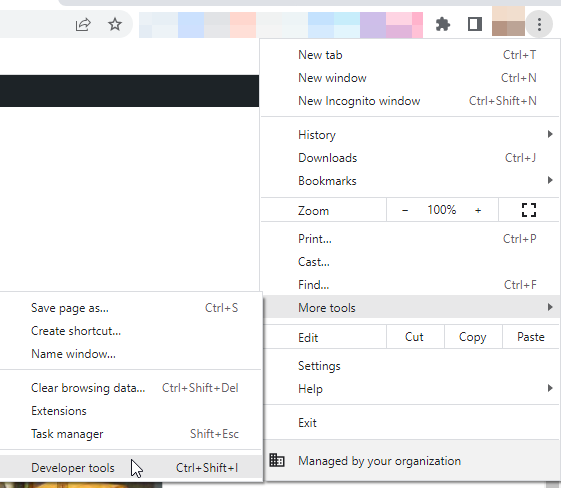
On a PC, F12 does the job.
Inspect an Element you Wish to Modify
In Dev Tools, on the upper-left, press the Inspector icon.
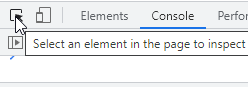
Now hover over the element on your page you wish to change and select it. As you hover, Inspector will already show you some styles applied to that element.

Experiment with Changes
Once you inspect an element, Dev tools will show you the HTML of that element and all the styles that make it look the way it does. We can't teach you HTML and CSS here, just know that CSS rules are styling rules that queue up to style elements, where the most specific rule tends to win out.
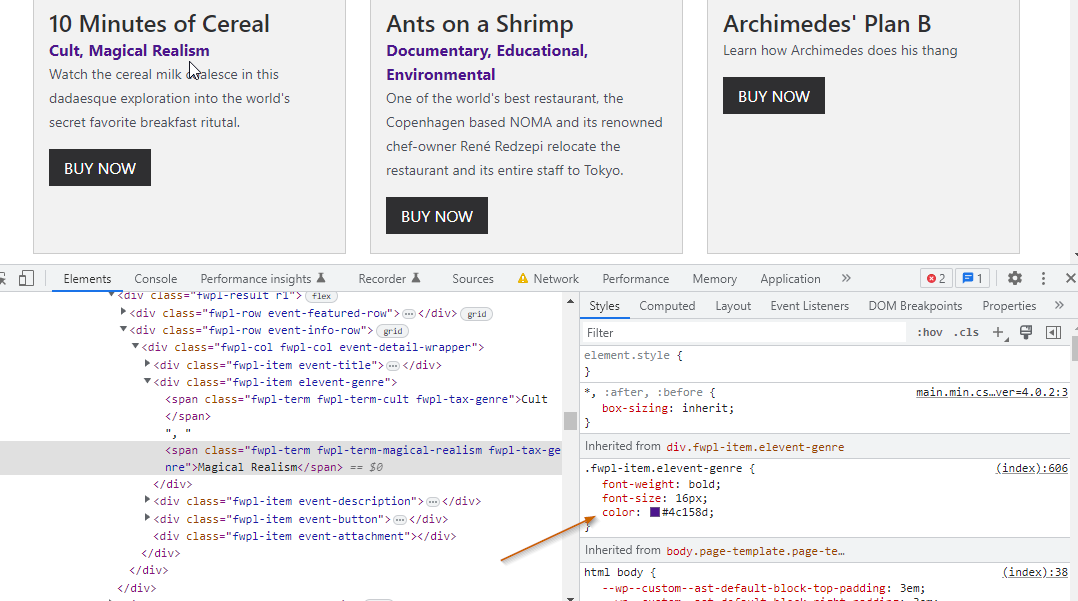
We're going to change the purple color of those genres on our Event Grid to a different color.
In the Styles pane, you can add new styles, edit existing ones, or in the case of a color picker, just press the little color box and change the color from a color picker.
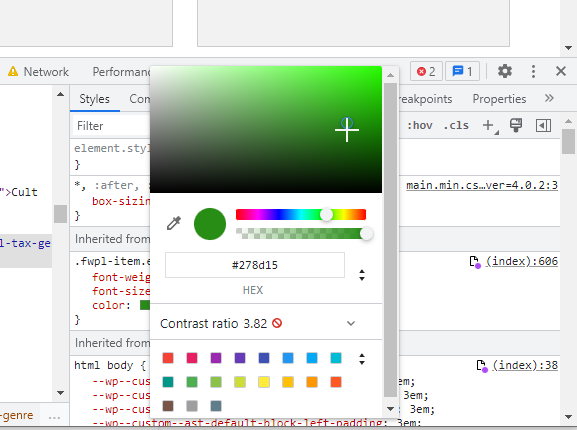
You will see the effects of your experiment in the browser window. Keep experimenting until you get the result you want.

Note that this will not actually make any changes to your website--you are just experimenting with changes in Dev tools.
Copy and Paste a Rule Into Your Custom CSS File
Copy the changes you've made right from the Styles window in Dev Tools
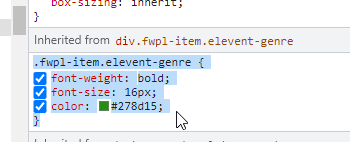
If you didn't change any properties, you can delete them from the style you copy (They won't break anything, but they are redundant and redundant things just slow the site down).
In your custom CSS file in your child theme, paste the CSS style. Make sure to upload the updated custom CSS file into your child theme where you host your website.
You might need to refresh the cache of any server or plugin WordPress caching you have in place, and refresh your own web browser cache, to see the effects of your changes.
Note: This is clearly not the cleanest, most manageable, or optimal way to custom-design a website. But for a novice only making a handful of alterations, this is just fine.
What went wrong? (Optional)