
Applies to Elevent for WordPress 2.0 and 1.6.5. Where they differ, it's noted.
To help you get off to a quick start, the Elevent for WordPress plugin comes with a small number of event listing and event landing page templates.
We welcome and expect you to take these templates and make them your own. The point of an integrated web plugin like this is to create something tailored to how you want your site to look.
Choosing How You Template
Out of the box, the plugin comes with traditional WordPress templates and a starter template for Elementor, the most widely used WordPress page builder. Both include the Elevent ticketing widget, the event image, multi-part event information, and placements for most of the data you sync from Elevent.
You can copy and customize the WordPress template in your theme, or use another WordPress plugin or page builder's templates (we use Elementor as a common example).
On the Elevent settings page in WordPress, the Use Elevent Event Template box decides which template your event pages use:
- Checked: event pages use the template in your theme, if your theme has one. If it doesn't, they use the default template that came with the plugin.
- Unchecked: WordPress uses your theme's normal post layout, or the template a page builder assigns. Uncheck it to let a page builder, like Elementor, assign templates to Elevent Events. Most Elevent sites work this way.

Elevent Events and Elevent Showtimes are the building blocks of the data that comes from Elevent. They're custom post types created by the plugin, with a variety of custom fields not found in a plain WordPress installation. Whatever editors or page builders you use need to work well with custom post types and custom fields.
Using the Default WordPress Template
There's nothing extra to install to use the default template that comes with the plugin. Check Use Elevent Event Template, and once events are syncing from Elevent, open any event on your site to see it in action.
The default single event page shows, from top to bottom: the featured image, title, subtitle, genre links, description, trailer, the multi-part line-up, the showtimes and ticket buttons, credits, sponsors, additional images, and "You might also like". A sidebar has a Purchase Tickets button, event details and the venue.
Learn more about WordPress custom post type templates here.
Customizing the default template
If you want to create or modify your own single event template and don't want to start from scratch, start from the plugin's:
- On your hosted WordPress site, open
wp-content/plugins, then the Elevent plugin's folder, then its templates folder. - Copy single-events.php into your child theme's main folder, keeping the name
single-events.php. - Modify it to your heart's content. WordPress now uses your copy for every event page, even if Use Elevent Event Template is unchecked.
Working in a child theme means plugin updates won't overwrite your changes. Learn more about child themes here.
Installing the Elementor Default Single Event Template
If your website uses the Elementor page builder, you can use Elementor's Theme Builder to assign and modify landing page templates.
Find the Elementor Templates option in the WordPress admin, and choose Theme Builder.
In the Elementor Theme Builder, on the upper right, choose the Import option.
The template is a .json file named Single Event Detail Page. You'll find the latest version in the plugin's .zip file, in the elementor-widgets folder (called Elementor Widgets in version 1.6.5). Drag that file onto the import area in the Elementor Theme Builder. It gives you a quick-start template you can modify and make your own.
When you're done, you should see a Single Post template called Single Event Detail Page. Press Edit Conditions to make it the template for all Elevent Events.
Choose to use this template on all Elevent Events, then press Save & Close.
This changes the look and feel of Elevent Events without affecting any other posts on your website. For it to take effect, leave Use Elevent Event Template unchecked.
Modifying the Single Event Detail Page
Press Edit to make changes that affect all of your Elevent Event landing pages.
You'll enter the Elementor editor. There are plenty of great videos and tutorials on Elementor's website and YouTube, so feel free to skill up on Elementor at this point.
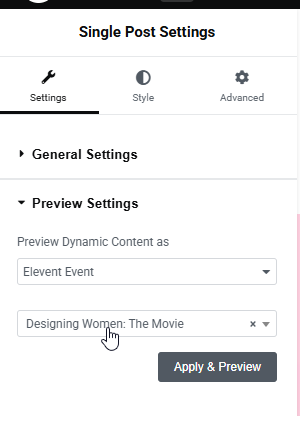
It's much easier to customize an event template with realistic sample data and images. Click the gear icon in the lower-left corner to open Template Settings. Under Preview Settings, choose the post type and a specific event to preview, then click Apply & Preview to load that event's content into the template.
The Elevent plugin comes with a set of Elementor widgets that add rich, dynamic content about each event to your landing pages. You'll find them in a section of the Elementor panel called Elevent. Search for "Elevent" to find them quickly.
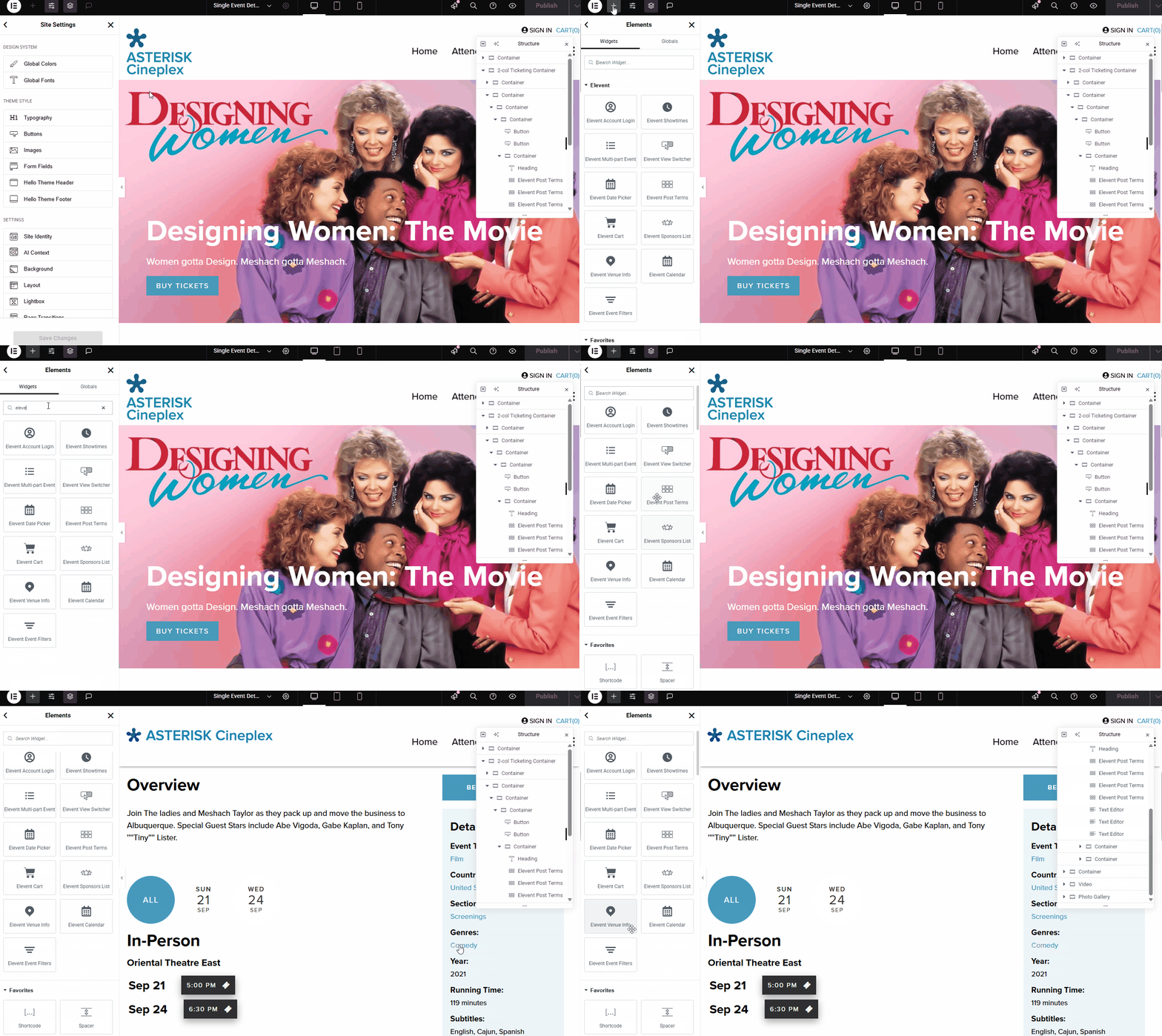
These widgets read "the current event", so they belong in a single event template like this one. On an ordinary page, they have no event to show.
Elevent Widgets for Event Pages
Elevent Showtimes
This is the ticketing widget: it shows the event's showtimes and ticket buttons. It's the equivalent of the [elevent_showtime_list] shortcode.
The key to a successful single event template is placing the event's data fields and Elevent's widgets well. As you browse the starter template, get familiar with them.
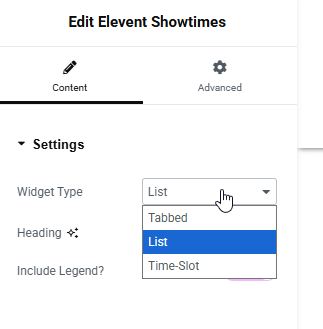
Options include:
- Widget Type: a powerful setting.
- Tabbed (the default) shows an in-line ticket selector for each showtime. It's meant for short runs: fewer than 5 dates and fewer than 3 shows per date.
- List suits longer runs, with a clickable ticket button for each showtime.
- Time-Slot is for choosing a time window that may be one among many per day, across many days (for example, museum entry). It shows one day at a time.
- Heading: the text above the showtimes, shown with the Tabbed view. The default is "Showtimes".
- Include Legend: shown by default. Toggle it off to hide the legend and color coding that explains the ticket buttons' status (for example, Sold Out or Limited Tickets Remain).
Elevent Multi-part Event
Shows the line-up of a multi-part program, or "Presented as Part Of…" on one of its parts. You can change the line-up heading, the sub-event heading and the sub-event button text. Learn more about multi-part events here.
Elevent Post Terms
Events can have values in 6 different taxonomies (categories) you may want to display: Genres, Sections, Venues, Countries, Search Keywords and Event Type. Add this widget one or more times to display clickable values on the event landing page.
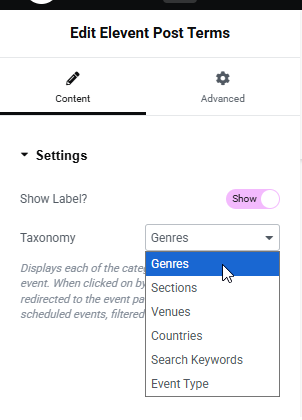
Options include:
- Show Label: toggle off to hide the label (for example, "Genres:"). On plugin 2.0.0 this switch has no effect and the label always shows. It works on 1.6.5.
- Taxonomy: choose which taxonomy's values to show.
Elevent Sponsors List
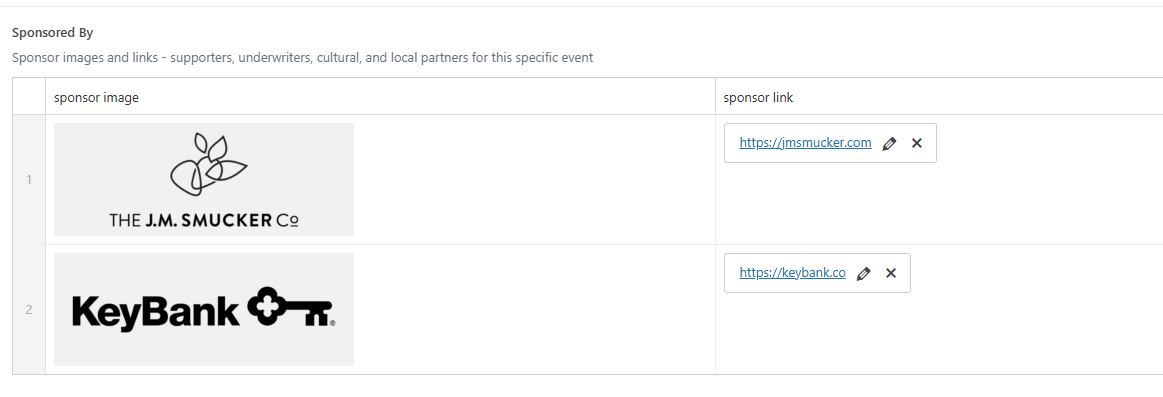
Shows images, with external links, for any sponsors or supporters of this particular event. What displays comes from the "Sponsored By" list on each Elevent Event.
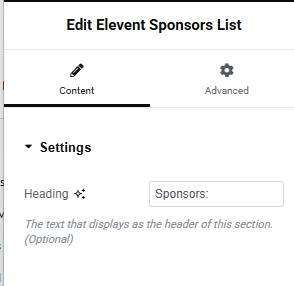
This widget has one option, the heading, which defaults to "Sponsors:".
Elevent Venue Info
Use this widget only on templates where every event takes place at a single venue. It shows that venue's description, which comes from the details added in WordPress for the venue in the Venues taxonomy.
Other Elevent Widgets
The plugin adds eleven Elementor widgets in all. The rest belong elsewhere on your site:
- Elevent Account Login and Elevent Cart go in your header. See Adding User and Cart Widgets to the Header.
- Elevent Calendar shows an event calendar on any page. See Creating Event Calendar Pages.
- Elevent Event Filters, Elevent Date Picker and Elevent View Switcher belong on event listing pages, and the first two need FacetWP. See Customizing Filters, Search, and Sort.
Shortcodes
For any other information you want to add, use Elementor's Shortcode widget with an Elevent shortcode. The Shortcodes & Usage box at the bottom of the Elevent page in your WordPress admin describes the most common ones.
Using the Block Editor Instead of Elementor
If you build pages with the WordPress block editor, the plugin adds blocks in a block category called Elevent. For event pages:
- Multi-part Event shows the multi-part line-up, with default headings.
- Elevent Showtimes shows the showtimes in the tabbed view. On plugin 2.0.0 this block doesn't work. Instead, add a Shortcode block containing
[elevent_showtime_list].
For everything else, add a Shortcode block with the Elevent shortcode you need.
What went wrong? (Optional)