
The Event Calendar comes with 4 different views of your Elevent events:
- Monthly Calendar
- Weekly Calendar
- Day Schedule
- List of Shows
You can get familiar with them here.
By embedding an event calendar into any of your web pages, you can instantly have a fully-functioning calendar with all 4 views available for browsing.
This article is all about the [elevent_calendar_view] shortcode or Elevent Calendar Block, how to use them, and what's possible.
Adding an Event Calendar to a Page
If you are using a pagebuilder or design system that shows an Elevent Calendar block, drag that on to your page.
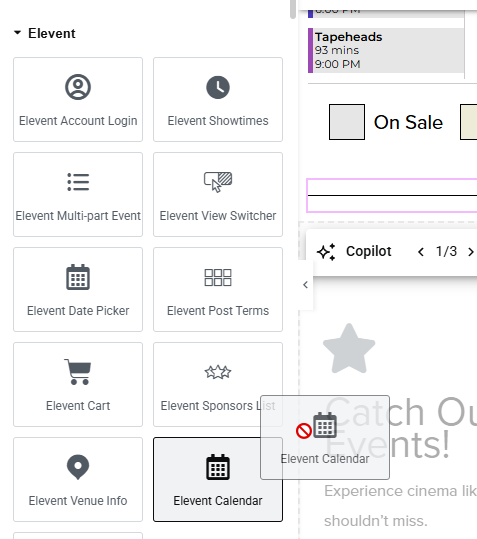
Note: Don't worry if the preview of the calendar doesn't look right--the calendar usually only works well on a regular view of a page.
Since the Event Calendar is a WordPress shortcode, it can be added to any kind of website, pagebuilder, or template. Just add this shortcode to the area of any page where you want the calendar to display.
[elevent_calendar_view]
If you do nothing else, you will have an event calendar with 4 different ways to view it on your page, showing your future events.
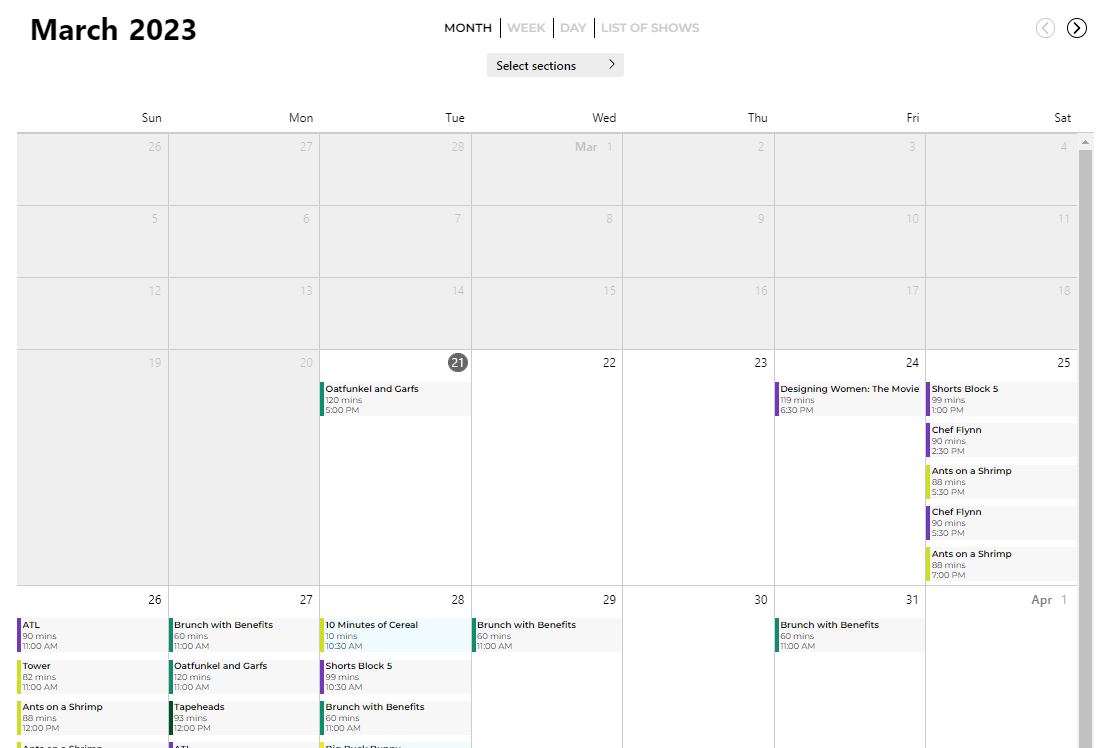
Syncing up new Elevent events will automatically show them on the calendar.
Choosing a Category for the Calendar Filter and Color-coding
All 4 of these chronological calendar views can have a single category (taxonomy, in WordPress-speak) that they can be filtered by. You may also choose colors for each option in the category to color-code events with a prefixed color bar, like this.
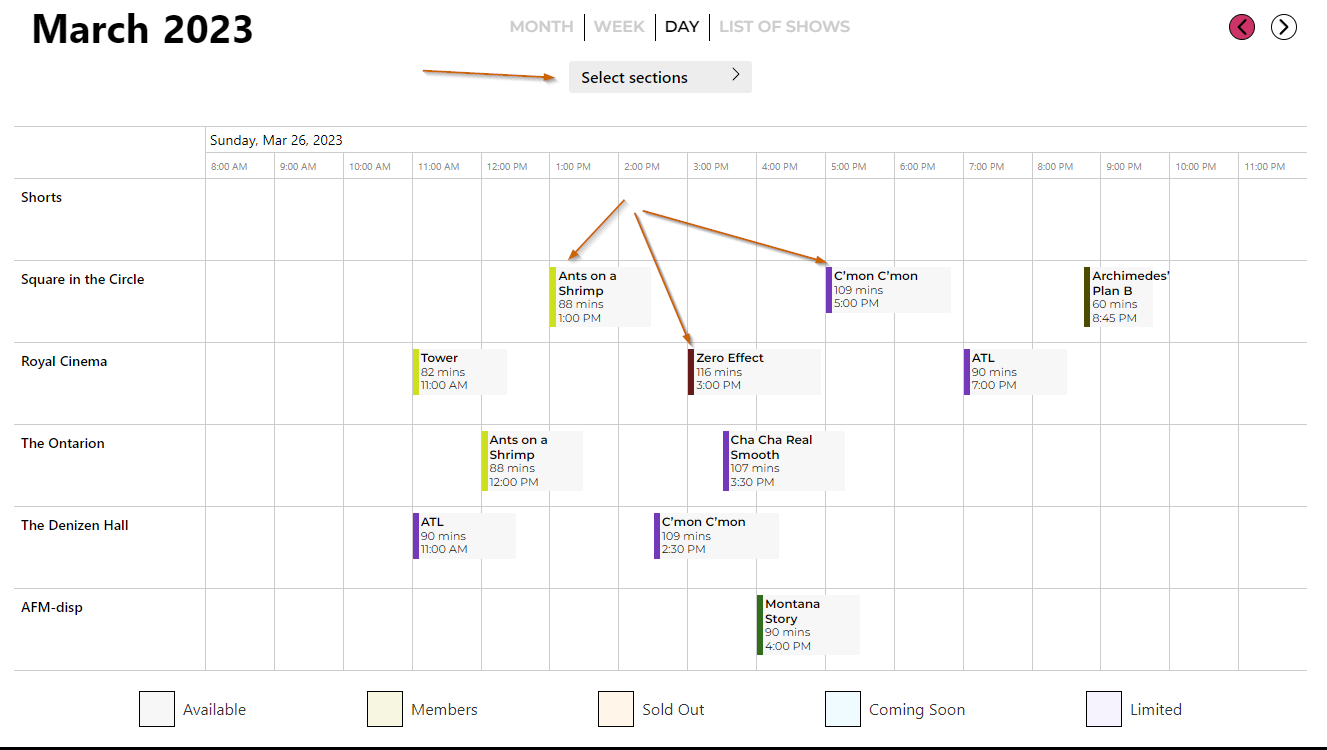
This is a site-wide setting you configure in the Elevent for WordPress settings page. Navigate there from your WordPress admin menu.

Under Front End Options, find Calendar Taxonomy.

Enter the name of the event taxonomy you want to use as the basis for filtering and color-coding events in the chronological calendar views.
Note: The Event Grid and Event List views have a wider variety of options for filtering and styling.
Your choices include:
- section
- country
- genre
- venue
- event_types
- search_keywords
You can set your own individual colors for each option in whichever taxonomy you chose. From the WordPress admin, hover over Elevent Events and choose the taxonomy you are using as the Calendar Taxonomy.
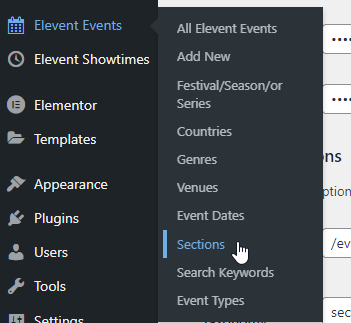
Choose one option--section in this case--to edit it.
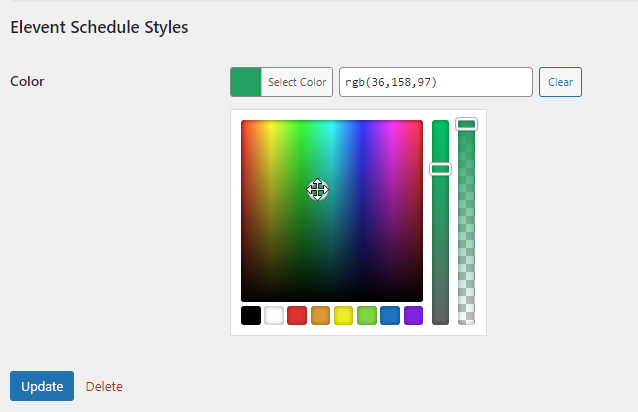
Under Elevent Schedule Styles, you will see a color selector--select the color to display on all events belonging to this category. Press Update to save.
Pre-filtering a Calendar for Brands
Brands are a master-grouping that sync from Elevent. Based on the brands assigned to the tickets sold in shows, each event can be classified as part of one or more festival, season, or themes automatically. Brands are ideal if you want events to appear on different calendars in different parts of your website without having to manually interact with WordPress every time.
In the WordPress admin, visit Elevent Events -> Brands to see which brands have been created by the sync.
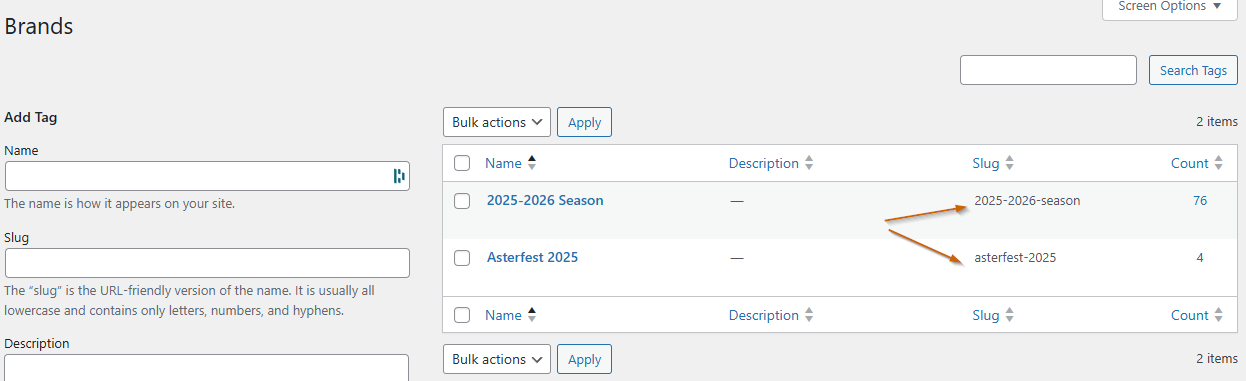
Note the slugs and how many events each brand is associated with. For an Elevent Calendar block, paste one (or a comma-separated list of multiple) brand slugs into the Brands option.
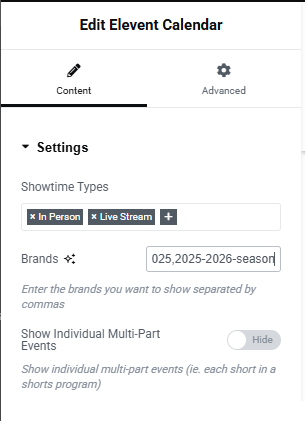
You can also filter a calendar by brand by the link used to land on the page using querystrings in the URL. For example, appending this to the link will only show events in these 2 brands:
&_brands=2023-festival,superseries
The [elevent_calendar_view] shortcode can also pre-filter to one or more brands.
Pre-filtering a Calendar for One Festival, Season, or Series
Similar to Brands, you may want multiple calendars on your website, each featuring events from a specific festival, season, or series--but from categories you manually assign in WordPress. This taxonomy works almost identically to brands--it's an alternative method for when you want control in WordPress, not Elevent.
For instance, we may want a calendar on our website that shows only events that are part of Elefest 2022. First, we'll need to make sure we've created a Festival/Season/or Series called "Elefest 2022".
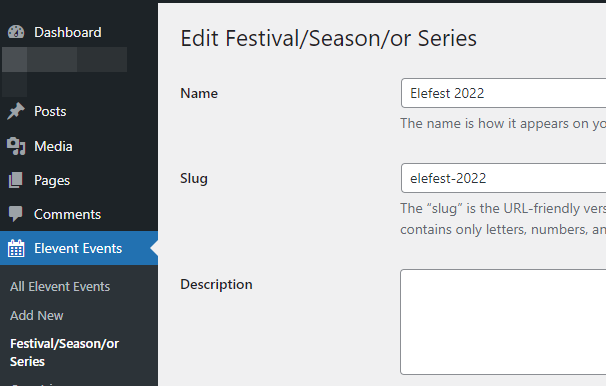
And all of the events for that festival, season, or series will need to be assigned to this category to display.
Once that's done, place the [elevent_calendar_view] shortcode on a page, but this time, specify the slug for which festival, season, or series the calendar will display. Like this:
[elevent_calendar_view festival_season_series='Elefest_2022']
Any events that don't belong to the specified festival, season, or series will be excluded from this particular calendar for all users.
Pre-filtering a Calendar for Specific Types of Showtimes
Often, you may wish to include/exclude certain types of showtimes--for instance, if you are streaming events on-demand over multiple weeks, showing those showtimes can clutter a timed-event calendar.
There are 3 types of showtimes--you can amend the elevent_calendar_view shortcode to specify only those showtimes types you wish to display.
[elevent_calendar_view showtime_types="virtual,in-person,live-stream"]
If using an Elevent Calendar block, these can be easily chosen in the block options.
Landing Users On a Specific Calendar View
By default, users always start on the Monthly Calendar. That might not be the optimal view for your events.
For instance, if you want users to first land on the List of Shows, you would add a querystring paramter to the end of the link, like this:
https://www.yoursite.com/calendar-view/?view=list
Since there are 4 views, there are 4 landing options:
- Monthly Calendar: ?view=month
- Weekly Calendar: ?view=month
- Day Schedule: ?view=day
- List of Shows: ?view=list
Displaying Sub-events
By default, each sub-event in a multi-part event is hidden from view on a calendar. These could be each performer in a set, each session in a daylong schedule, or each short film or play in a block.
Usually, each sub-event clutters up the calendar. However, you can display each sub-event by toggling-on Show Individual Multi-Part Events. In this case, the whole block and each sub-event will display in all calendar views.
What went wrong? (Optional)