
The Elevent for WordPress plugin offers users a number or different ways to browse, view, discover, and plan around your events. Here, we'll give you an overview of the options you have to choose from.
Each "view" is its own page on your website. Offering every possible view might overwhelm your visitors, but there are a number to choose from since every season, festival, run, series, venue, or single event needs to be presented a certain way to make sense.
As you browse this menu of choices, consider what you program in terms of:
- Density: How many showtimes you have over a day or week
- Spread: How many different locations or does everything happen at a single location
- Categorization: Do users need to be able to browse, filter, and discover across different types, categories, or tracks of events or is it fairly homogenous?
- Variety: Do you have a small number of events or a large variety of different events to choose from (even where one event might have a long run of showtimes)
These different views will become a significant part of the content of your website. Feel free to experiment. The schedule and ticketing that you set up in Elevent works with all.
No matter which you choose to use, include in your plans:
- You can segment different sections or areas of your websites for specific brands, seasons, festivals, series, or single events you program. It isn't uncommon to offer a number of different types of events--and you might have areas on your website that offer, for example, a large festival, a series, a 2-month run of a single show, and educational events all on different parts of your website. Great. You'll use your single Elevent account and different views from the Elevent plugin at different parts of your website to present things this way.
- Always plan have a single page somewhere that shows, in some form or fashion, every event and showtime you have. A master list or master calendar, of sorts. You'll want a landing page somewhere so users can choose a certain genre or type when browsing to land on, pre-filtered for what the user selected.
Views to Choose From
These are basic examples to give you a sense of how each view differs. Keep in mind the end result can look very different, depending on how your site is styled and customizations you make.
Event Grid
The Event Grid is a multi-column layout of tiles, often containing a small image, some pertinent text or tags, and a button/link to get to an event and ticketing page. The event grid can be customized to show different # of columns and different display info in each tile.
A variety of filters, datepickers, search, and sort options can be added to make the event grid interactive.
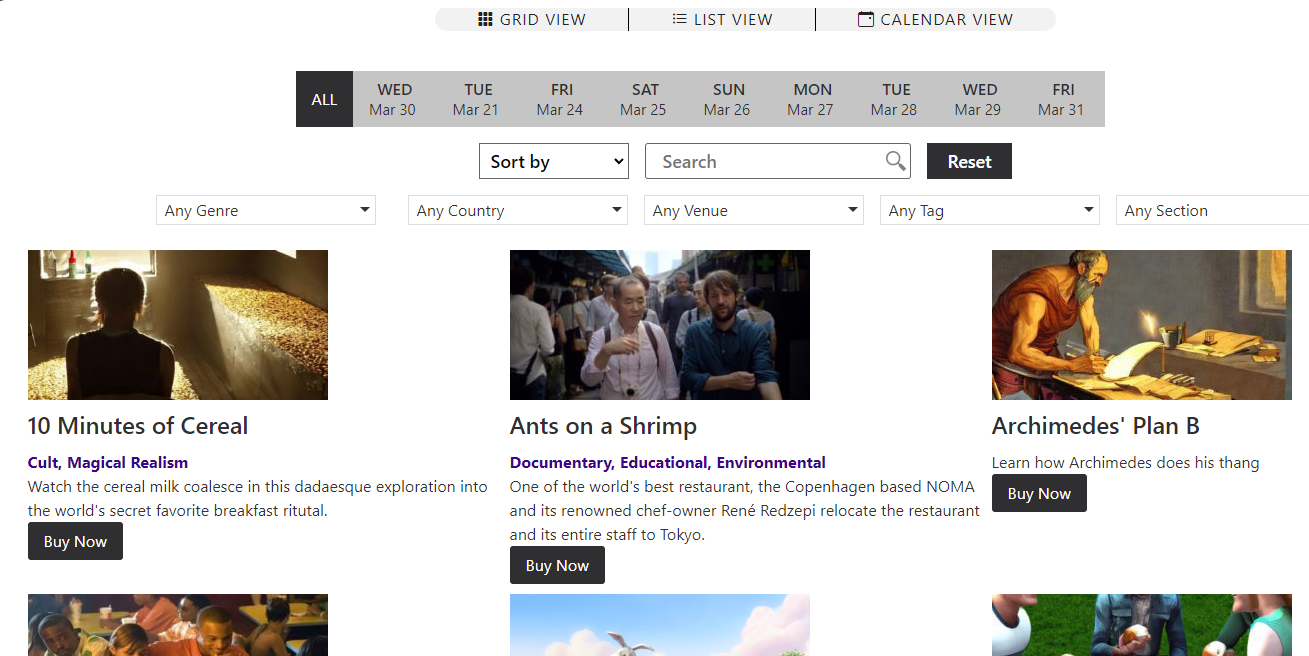
Event Grids are great when you have a variety of events, different categories or types of events to peruse, and some of your visitors are browsing primarily for what to attend, not where or when. Event grids are also useful for on-demand events that can be streamed online when convenient.
Event List
The Event List is a single-column list of tiles, often containing a small image, some pertinent text or tags, and individual buttons for each showtime. The event list can be customized to show different # of columns and different display info in each tile.
A variety of filters, datepickers, search, and sort options can be added to make the event list interactive.
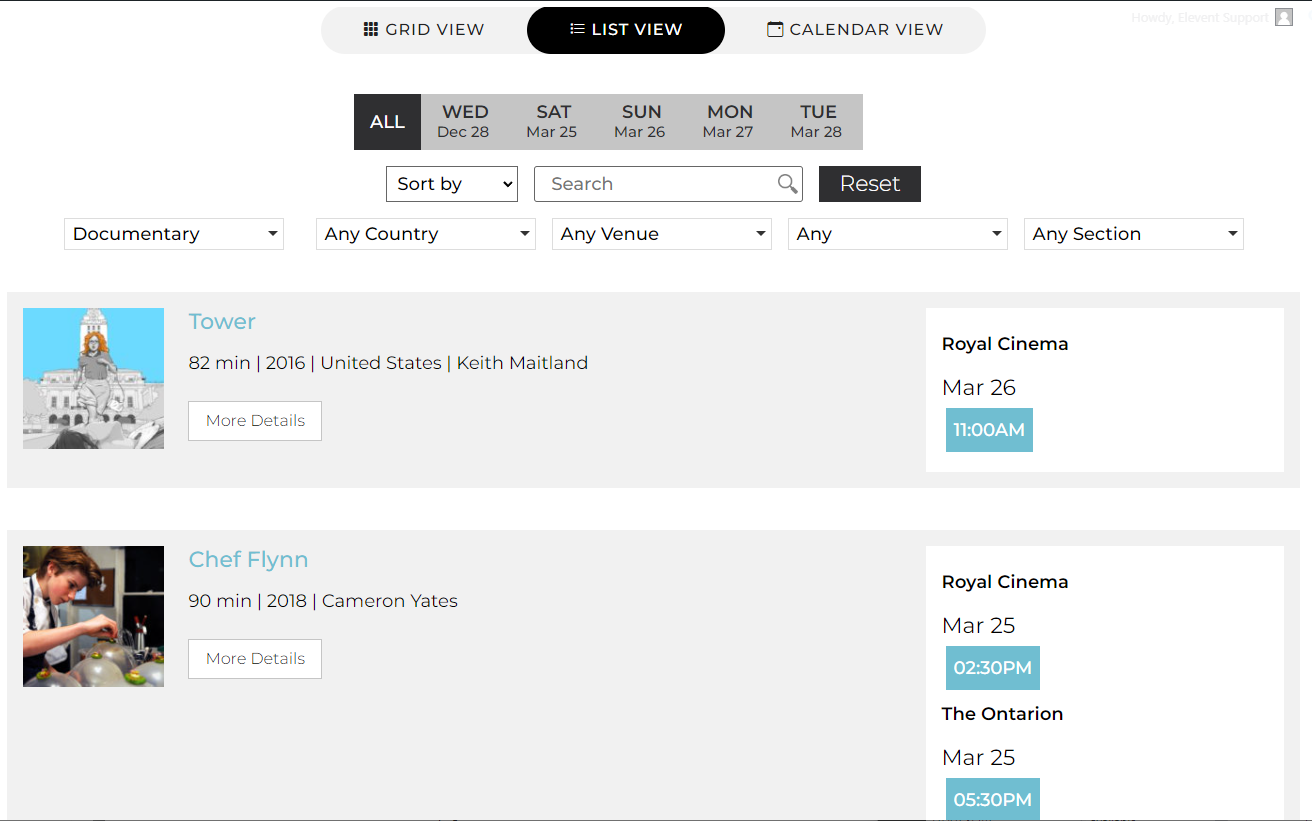
Event Lists are great when you have event that have a lot of showtimes, at one venue or several. They are also ideal when visitors can be incentivized to buy right from where they browse, since pressing a showtime button sells tickets right then and there.
The Event List view is popular with cinemas and mixed-use spaces that program events heavily throughout a period of time.
Monthly Calendar
The Monthly Calendar is what is sounds like--akin to a wall calendar that shows one month at a time. Events can be color-coded and filtered by a single category of your choosing.
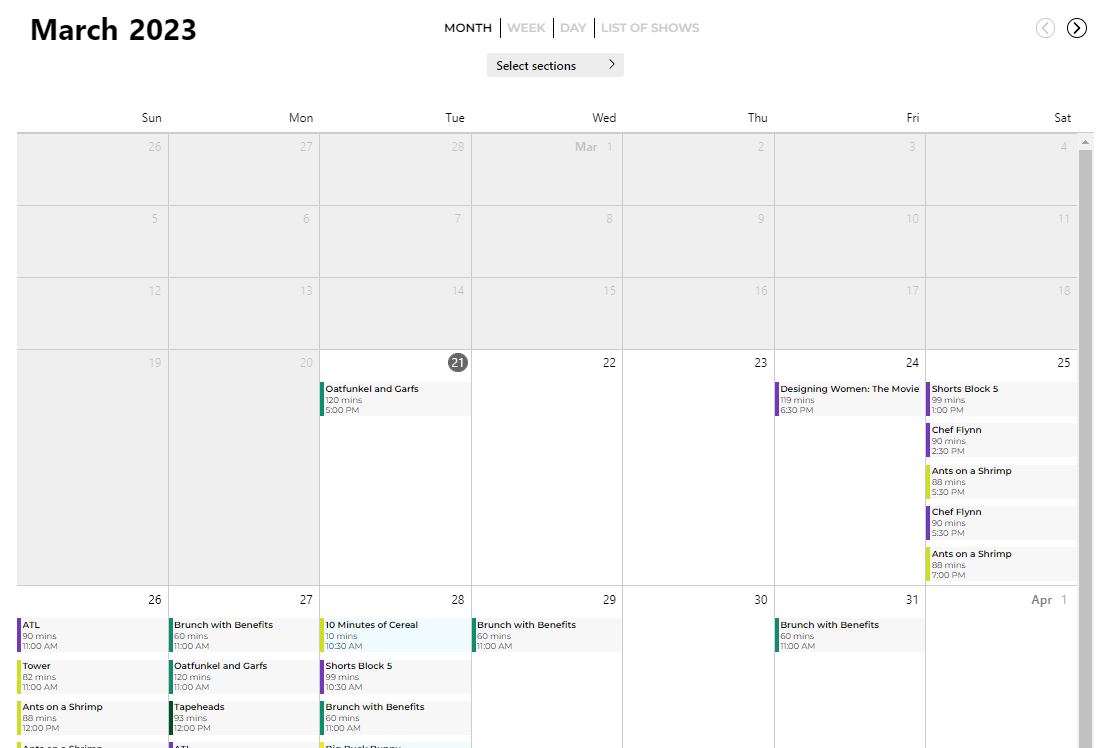
Monthly Calendars are great when your events are spread out over time and or when you don't have more than a few events on a single day. Like all calendar views, these serve visitors who are guided primarily on when they wish to attend an event.
Weekly Calendar
The Weekly Calendar is very like the monthly calendar, showing a single week at a time. Events can be color-coded and filtered by a single category of your choosing.
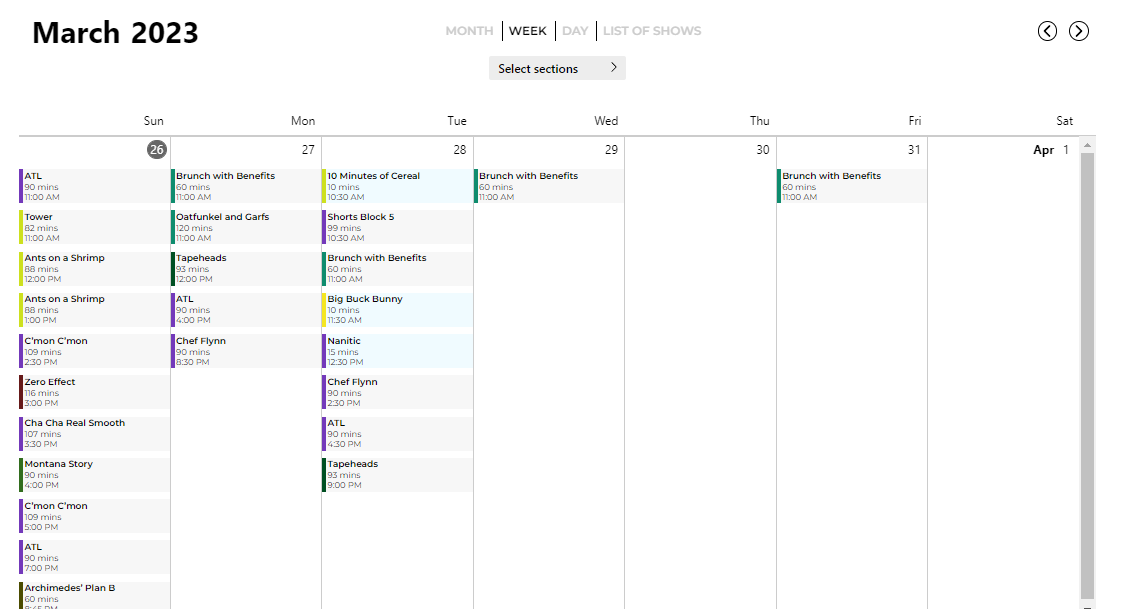
Weekly Calendars are great when you have between 3 and 12 showtimes per day and a limited number of venues. Like all calendar views, these serve visitors who are guided primarily on when they wish to attend an event.
Day Schedule
The Day Schedule shows great detail on a single day of programming. Visitors see, visually, at which time each showtime occurs on that day. Each venue has it's own 'swim lane', so visitors can really grapple with where and when they need to be for the shows they want to attend. Events can be color-coded and filtered by a single category of your choosing.
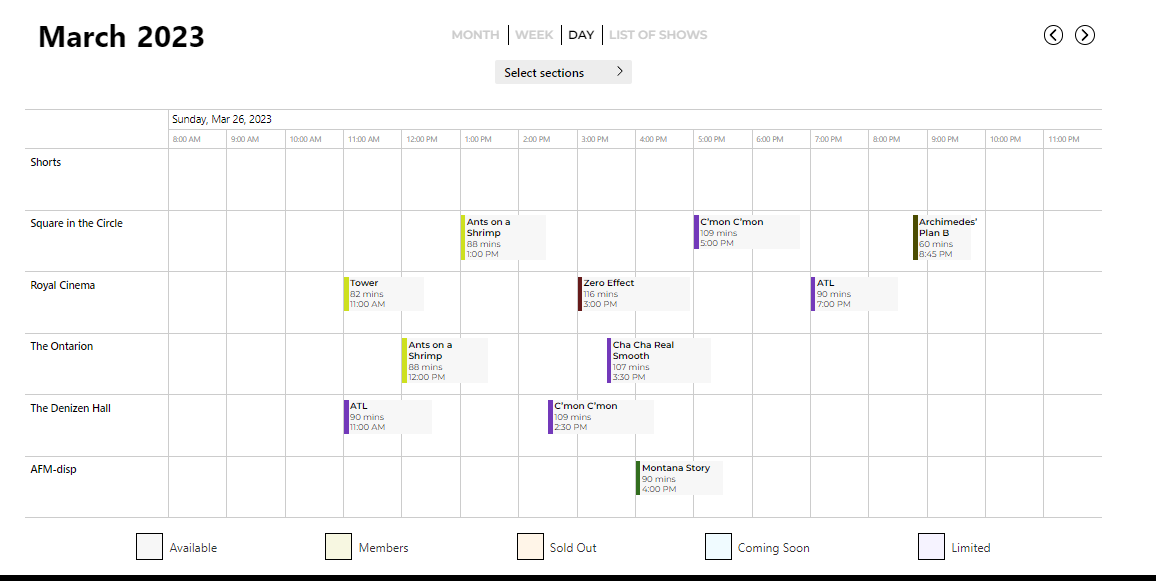
Day Schedule Views are highly popular during multi-event festivals like a film festival, food & wine festival, or multi-session conference. They render these most complex of scheduled events a lot more interpretable.
Like all calendar views, these serve visitors who are guided primarily on when they wish to attend an event, and in this case, where.
List of Shows
The List of Shows is a deliberately simple chronological list of showtimes, no matter the location or event. Showtimes all show in chronological order, grouped by each day, separated by a date header. It reads like an interary of your entire program. Events can be color-coded and filtered by a single category of your choosing.
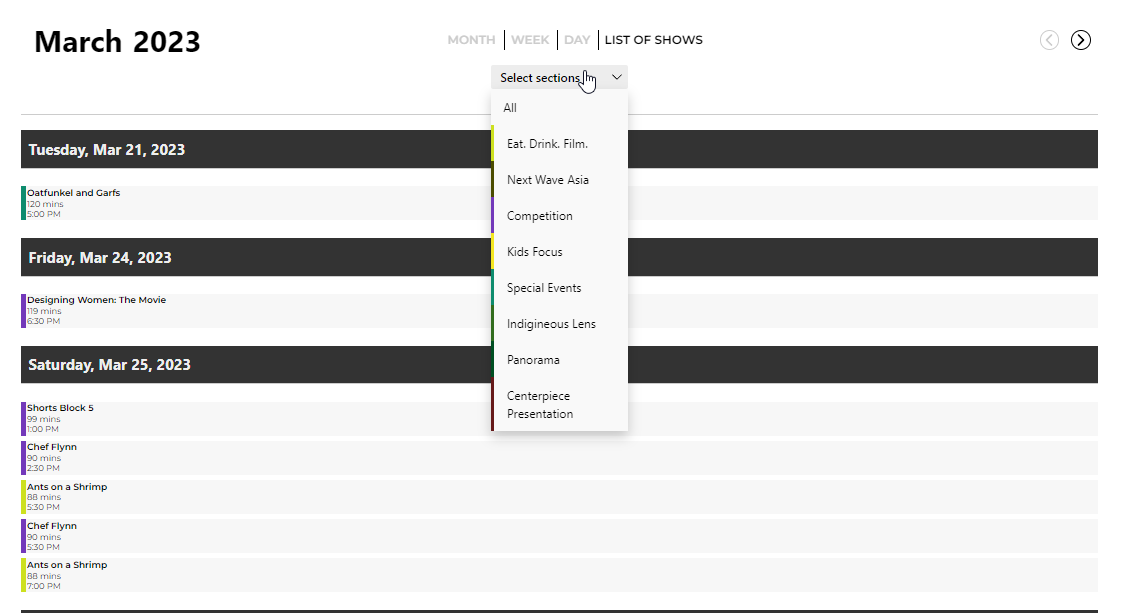
Lists of Shows are great when you have visitors that need to keep it semple. They are highly flexible and work well when you have a small or large program of shows. Like all calendar views, these serve visitors who are guided primarily on when they wish to attend an event.
Defining What Shows In Each View
Calendar Views and List of Shows
You'll notice the Monthly, Weekly, Day Schedule, and List of Shows all keep a more distinctive, consistent look and feel. These views are less customizable than the Event Grid and Event List--they are more date-driven, limited to a single filtering option, and have limited space to show details about each event. Each showtime displays the name of the event, runtime, start time, an optional color bar for categorization, and a background highlight showing its sale status. This cannot be altered.
Event Grid and Event Lists
To contrast, the Event Grid and Event List are highly customizable. Any category of events can be made available as a filter and many sort options can be made available. While they don't have the sophistication of a full calendar, a datepicker can be pressed to show events only available on any one day.
On the display of events, any image, category (taxonomy in WordPress-speak), or data field can be shown with the placement and styling of your choosing--thumbnail images, full images, videos, tags, buttons, long passages of text, you name it.
The look and feel of every element on Event Grid and Event Lists is designed to be tailored to your specific site's styles.
How Users Get Around
It is expected you will offer multiple views of events to any of your seasons, festivals, or series--whichever fit your program. Each view is its own distinct page, so you can help users navigate to your views via:
- one or more options in any of your menus
- The Elevent View Switcher that comes with the plugin. You can customize the display names and icons that display, linking each choice to one of your views. You can even add options that aren't views at all, such as a PDF download of your schedule or a link to an external calendar.

- Any button or link anywhere on your website
- From single event landing pages
- Links from other website or marketing outreach
What went wrong? (Optional)