
Once you have the Elevent for WordPress plugin installed, you need to hook it up your Elevent account for events and ticketing to start flowing in. This is the easy part.
Finding your Elevent API & Widget Keys
Log into your Elevent account and hit the Back Office. Press the  button in the main menu.
Choose from the submenu.
At the top there you should see the API and Widget Keys. These are secrets you keep and know to enable other systems, like your WordPress site, to talk to your Elevent account.
If you don't see two keys here, open a support chat and let them know you are using the WordPress plugin and need the External Web API enabled for your organization.
Copy both the API Key and Widget Key and paste them into the matching fields in the Elevent for WordPress plugin
Press the button to save your changes.
That's it. Elevent embedded widgets across the website should now work. And then next time you press the button, your ticketable events and showtimes will be pulled into WordPress. Hey, let's try that now.
Importing Events and Showtimes
Press . Watch it go!
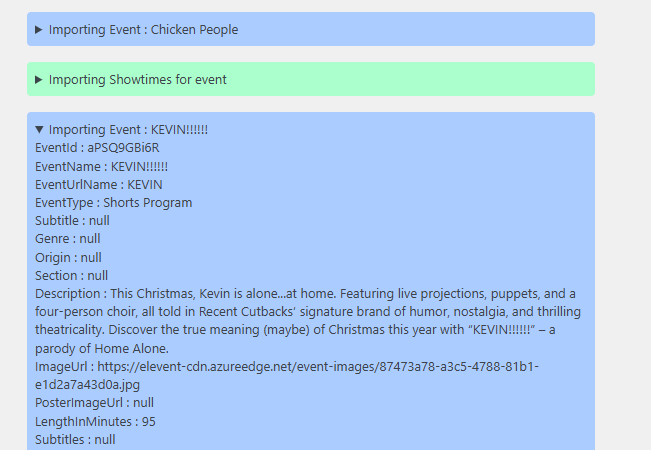
You'll be able to see events and showtimes come into the WordPress site. You can sit here and watch the progress indicator, or go to other pages and keep working--it'll finish the sync on its own.
You can inspect the exact data coming in for each event and showtime by expanding any of the incoming data in the log.
Enabling Autosync
When you feel ready, you can enable autosync to automatically sync in updated and new data. That way, you don't have to visit the WordPress admin every time you create or edit events or the schedule in Elevent.
Check the Enable Autosync checkbox. This will display a Sync Interval option - you can choose to sync automatically every hour or every 30 minutes.
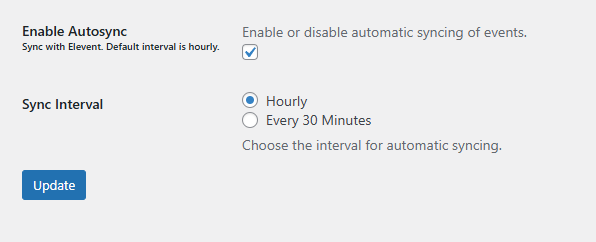
You might think 30 minutes is better, but consider the demand this puts your website under every 30 minutes. More importantly, if you have an especially large schedule of upcoming showtimes, you'll want to be absolutely sure your website can complete the syncing process before the next interval.
You can always return to the Elevent Settings page and manually press the sync button to retrive updates more quickly--even if autosync is enabled.
What went wrong? (Optional)