
The Elevent for WordPress plugin removes most of the effort from building and updating events on your website. This article will teach you how to take advantage of all the synchronization and automation between Elevent and your website via the Plugin.
This article will get into all of automatically integrated data. There are a handful of opportunities to further customize events and showtimes on the website.
Ticketable Events: When an Event appears on your Website
Since we don't want to accidentally display events that aren't ready to be seen on your website, no events or showtimes will be present on your website until they are 'ticketable events'--events that have showtimes that are either on-sale or could possibly go on sale at some point.
Thus, before you can work with events and showtimes on your website, they'll need to be set up in Elevent with the following conditions:
- There are upcoming showtimes (e.g., only showtimes that have a start date in the future or within the past 2 hours)
- Has at least one active showtime and the event is active (not inactive or archived)
- At least one showtime has had at least one ticket added to it (They don't need to be on-sale or scheduled to go on-sale yet)
Syncing From Elevent
This is the best part. We're going to press the magic button.
Note: This is a good time to have your favorite snack or beverage on hand. Cookies. A latte. Something like that.
Head to the Elevent plugin settings page in the WordPress admin.

Press . Watch it go!
You'll be able to see events and showtimes sync into the WordPress site. You can sit here and watch the progress indicator, or go to other pages and keep working--it'll finish the sync on its own.
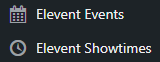
To inspect the results, visit Elevent Events or Elevent Showtimes from the main WordPress menu.
Choose any event or showtime. You will see all the synced and imported data in a tab labeled "Comes From Elevent".
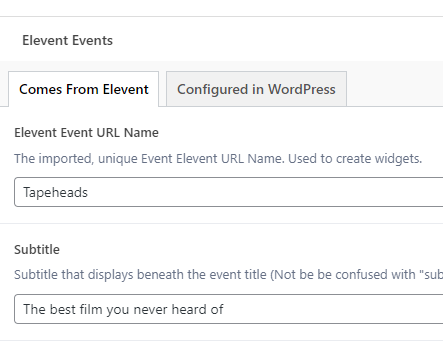
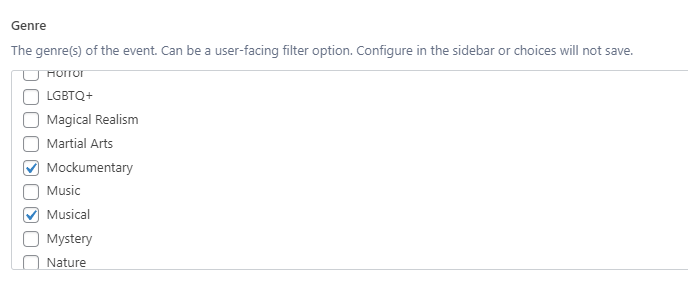
This includes all taxonomies except festival/season/series
Updating Changes from Elevent
From time to time, you might make changes to bits of data on events, move showtimes around, and add new events and showtimes. To nudge the website to update itself, press again.
On Elevent Events and Elevent Showtimes, you'll see the "Comes From Elevent" data updated to reflect any updates, and any new events or showtimes.
Customizing Events in WordPress
There are 2 places where you can edit Elevent Events on the website without worrying about losing your changes when the next sync happens.
- In the "Configured in WordPress" tab
- The content area of the event
Featured Image
The featured image will import the first event image that is added in Elevent. If the event image is updated in Elevent, that new image will be added to the Media Library in WordPress and replace the Featured Image for that event.
Note: Starting with version 1.4.0 of the Elevent plugin, this behavior changed. On prior versions, the original Featured Image on an event would not update when it was updated in Elevent.
Making Changes in "Configured in WordPress" fields
On any Elevent Event, you'll see 2 tabs of fields.
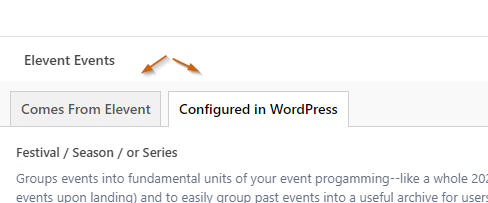
You don't want to touch anything that Comes From Elevent (via the sync). But you are free to customize events with some optional data that you see in the Configured in WordPress tab, including:
- Unlisted Event: Hides an event from browse and discovery.
- Festival/Season/Series: This is a taxonomy or category to group events together into a program of sorts. This is a useful way to group up your events into different programming concepts to filter out other kinds of events on certain pages or for easy creation of a historical archive later. This is an alternative to using Brands, when you want to control event groupings in WordPress.
- Featured Event: A checkbox to flag certain events for highlighting--such as those that might appear in a dynamic slider on the home page
- Sponsored By: A gallery of logos or icons of sponsors who support a specific event, with links to their websites
- Additional Information: An open canvas for miscellaneous other content (usually, the post content is used for this purpose)
- Time Zone: Only useful for online events. This text field clarifies for any purchasers not in your home time zone what time online events occur. This is an optional, event-specific override of the Default Timezone set on the Elevent Settings page
- Background Image: An optional image for use in some page template designs that have an event-specific background image
- Additional Images: A gallery of additional images about the event
- Maps & Directions: Only useful if the event only occurs at a single venue. If so, an event landing page may show an interactive map and directions to the venue where all showtimes of that event take place.
- Elevent External Ticketing Override: The ability to direct users away from your website for an event to another website to purchase tickets instead of displaying elevent ticketing widgets
- Multi-part Parent Event and Multi-part Event: Transforms this event into a lineup of other sub-events or makes it a sub-event. See here about Multi-part Events
- Time-slot Entry: Enforces the ticketing widget for this event to optimize for several timeslots per day (as opposed to showtimes). This will override the showtime type option on the event landing page template.
Where to Update Categories and Taxonomies
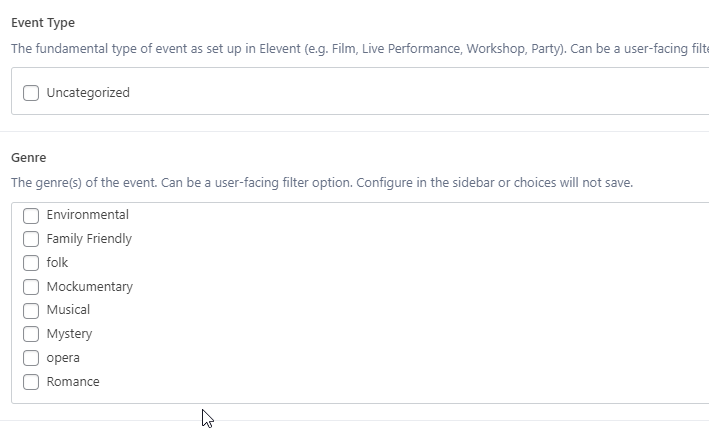
Categories ("Taxonomies" in WordPress-speak) are special fields that associate events with one or more categories. These are commonly used for filtering events. They will show up on Elevent Events in 2 places--in the "Configured in WordPress" tab, like this:
And in the right-hand sidebar, like this:
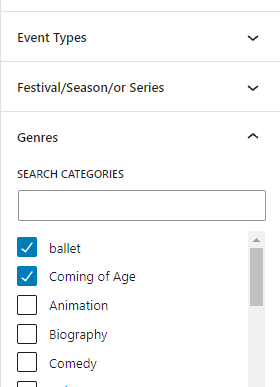
While in both places they will show correct values, you can only update them from the Configured in WordPress tab. WordPress will usually ignore any changes made in the sidebar, but every WordPress website may behavior differently. WordPress is weird.
Adding Content to an Event
An Elevent Event is just a type of WordPress post. Like any WordPress Post, you can add blocks of WordPress content to the post itself. The options here are vast.
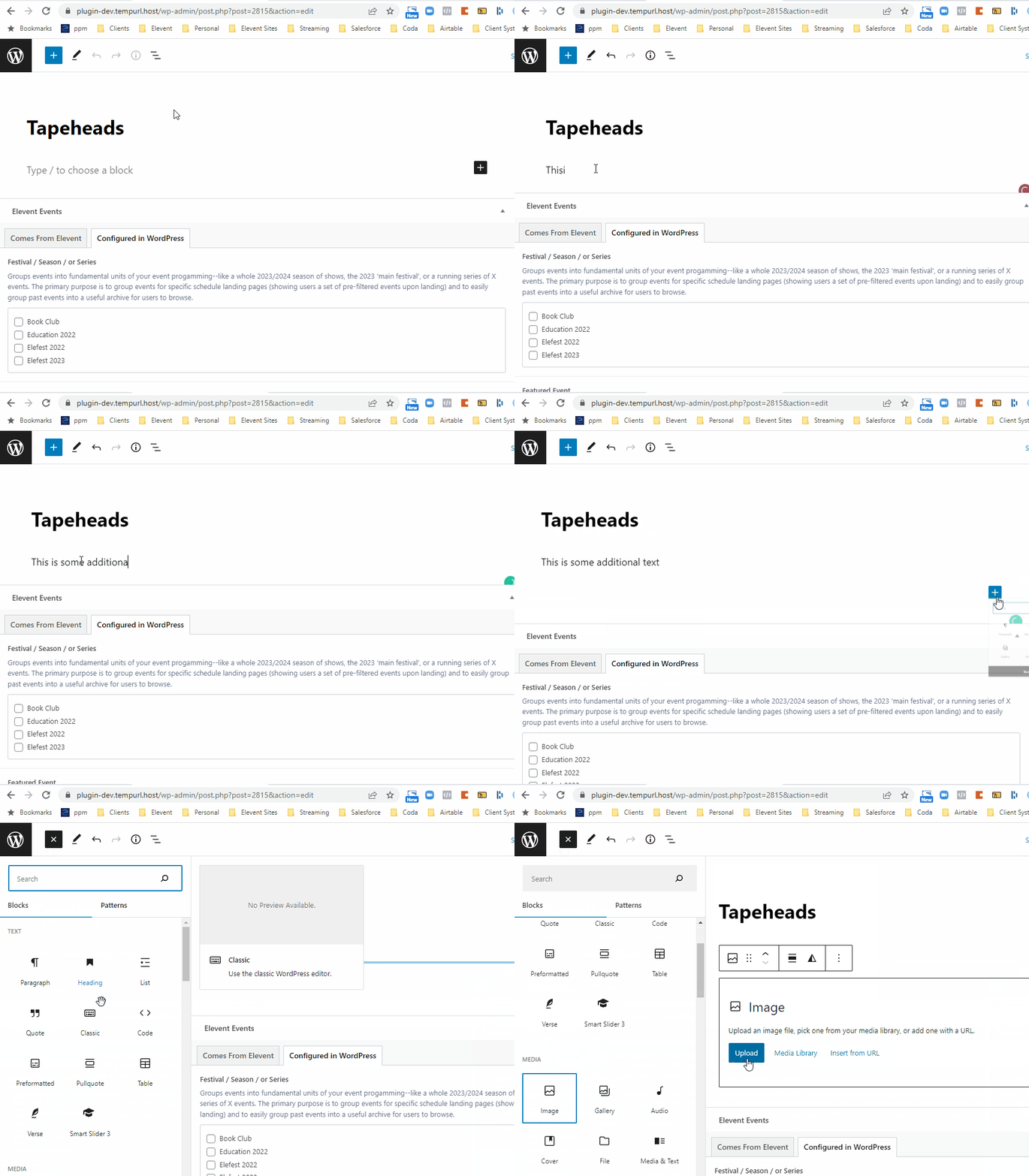
No field synced from Elevent will overrite the post content (as of plugin v0.5.3)
Even More Fields
Between the synced data and the additional customizations you can do, most scenarios should be covered. There are times when you might need to have your own custom fields on Elevent Events.
If you need more fields and data than you see here, learn more about Extending Events with Custom Data here.
What went wrong? (Optional)