
Multi-part events are a collection or presentation of multiple elements, or sub-events. They can take a lot of different forms, including:
- A block or program of several shorter films or performances
- An agenda of a number of different sessions
- A line-up of comics or musical acts
- A headline presentation with one or more openers
Often, you don't need to use Multi-part events in Elevent--if you just want to add rich, descriptive content about what happens in an event, you can add all that detail to the event landing page.
You would use true multi-part events when you want the Elevent WordPress plugin to create for you:
- The regular event landing page for the whole ticketed multi-part event
- A visual breakdown of all the individual 'sub-events' or line-up
- And individual landing pages for each individual sub-event as its own thing.
Multi-part events are not to be confused with categories, brands, or other groupings of individually-ticketed events. A multi-part event only sells tickets or registrations to the "parent" multi-part event--not to each individual sub-event.
Video Walkthrough
In this video, we walk you through either importing or configuring Elevent for multi-part events, then assembling them in your WordPress website.
Elevent Configuration & Importing
Since event and showtime data comes from Elevent, you'll start off by creating an Elevent schedule that's ready to be formed into multi-part events.
Create Multi-part events
For the multi-part event itself (such as "Shorts Program IV", "Friday Night Improv Showcase", or "Singy McDancypants with 2 Openers"), create and schedule events and showtimes just as you would with any event. You can learn all about event scheduling here. The runtime is the total runtime of all that will occur. Resist the urge to waste your time describing each sub-event/line-up in the multi-part event--just describe the overarching program here.
Create Sub-events
Now the setup process differs from regular, single-part events. In addition, for each sub-event (such as "A Short Film named Cleo's Boomerang" or "Jake's 20 minutes of Accordion" or "DJ Hairflip"), create it as its own event. Here you'll include whatever info and images you want about just that part of the program. If you haven't before, you might want to modify an Event Type to be named specifically for whatever sub-event concept you are using (such as short, performer, session).
Don't worry about which sub-events go with which multi-part event--you'll tie them together in WordPress.
Next, you'll schedule the subevents just to get them on the schedule.
Disclaimer: We agree, this part is not very intuitive. As it stands today, you do need to schedule the subevents to emulate being a ticketable event--the sole purpose is to convince your WordPress website to notice these subevents and sync them.
First, create a couple things for these sub-events: a ticket, and to make it easy to repeat, we suggest creating a simple allocation template with that ticket in it.
Schedule each sub-event once in the sub-event venue with the allocation template. The Multi-Scheduler makes this a rather quick affair.
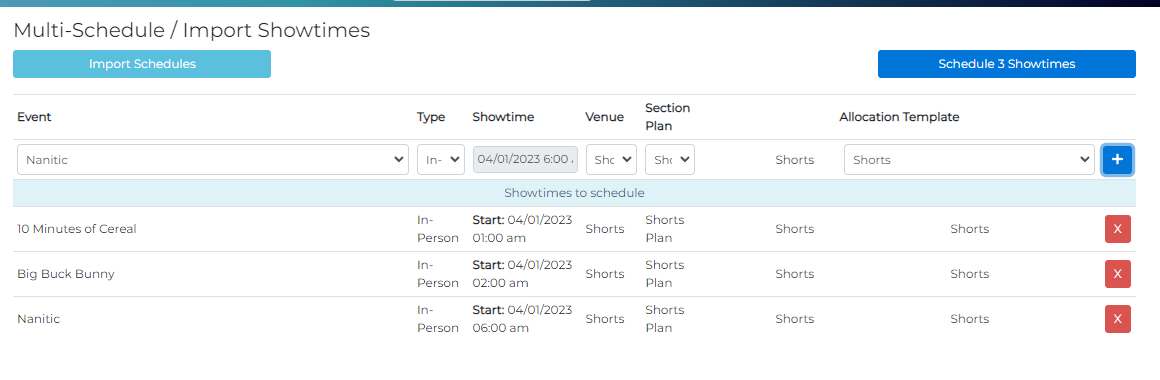
As you schedule them, you can either create them as In-person or Virtual showtimes.
Choose the Allocation Template you created and apply to all--then press the Schedule X Showtimes button to add them to the schedule.
If You Import From Airtable
Multi-part events and sub-events can be imported as well. This will save you a good bit of time while creating events and showtimes.
In the Airtable template, you'll see there is already a tab for Sub-events. This is where you will import all the showtimes for sub-events in the Multi-Scheduler. Learn about importing showtimes from Airtable here.
As you fill out the sub-events tab in Airtable, have them start and activate when the first multi-part showtime occurs and end when the last one ends.
Import using the Multi-Scheduler, then choose the Allocation Template you created and apply to all--then press the Schedule X Showtimes button to add them to the schedule.
Creating Multi-Part Events in WordPress
First, sync with Elevent from the Settings page of the Elevent for WordPress plugin.

Assigning Sub-events to a Multi-part Event
Next, navigate to Elevent Events in the main WP menu. Edit the event you wish to be the parent multi-part event.
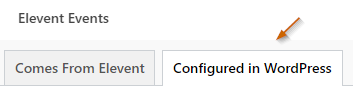
Toggle to the Configured in WordPress tab.
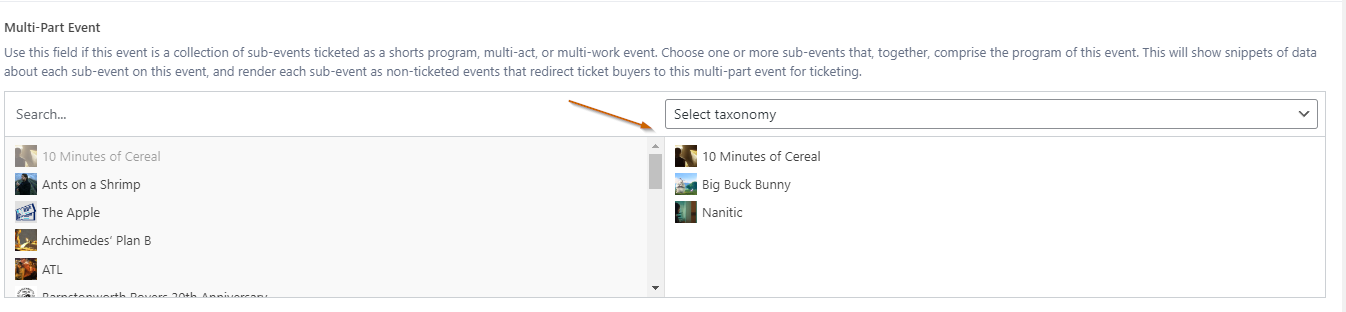
Scroll down to Multi-part Events. Check the Multi-Part Parent event box to indicate this is the ticketed event.

Search for and add each sub-event so that it shows in the right part of the split screen.
Add The Multi-Part Event to your Single Event Landing Page Template(s)
For the itinerary portion of multi-part and sub-events, you need to add one shortcode to your page templates (Or Elementor block):
[multi_part_event]
If adding the multi-part event Elevent block, you also have some options that affect the text that displays.
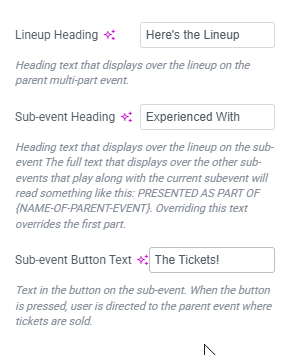
That's it. Now just review both the multi-part event and the sub-event to confirm everything looks good.
When everything is working, you'll see a lineup on the landing page of the multi-part event, like so:
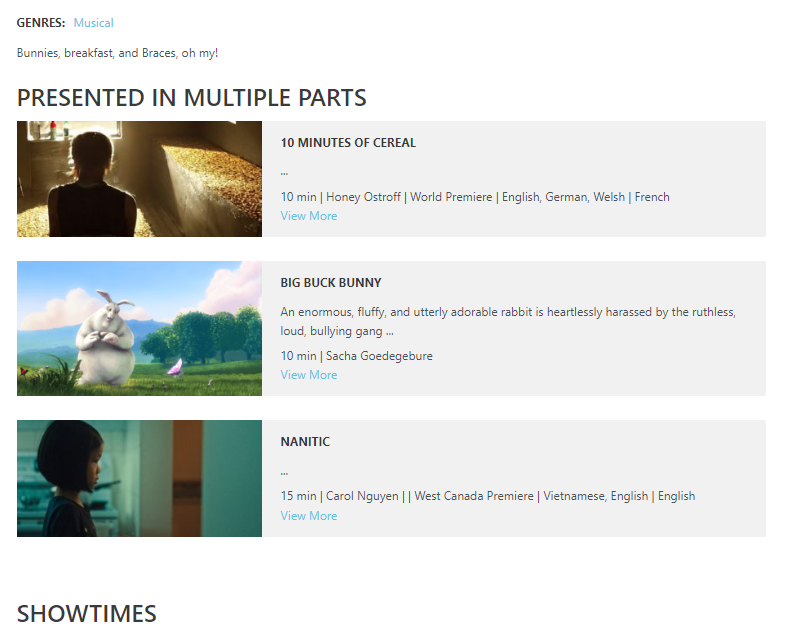
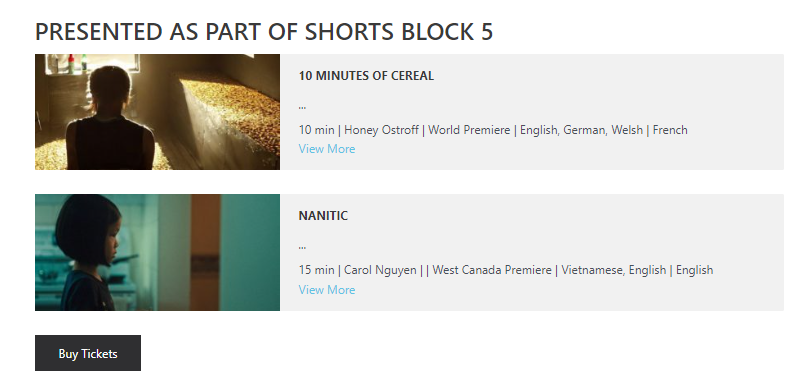
Tickets are sold on this page as normal. However, on the sub-event, the rest of the itinerary that sub-event is a part of will display. Instead of ticketing, a buy button takes them to the multi-part event page.
What went wrong? (Optional)